

Overview
In Spread, you set email recipients by ‘list’, not by individual email address. So to send an email, you first create a recipient list, then select that list as the recipient when composing a campaign. The overall flow is as follows.- Add contacts — Add subscribers (contacts) to Spread via Google Contacts sync or Import.
- Create a list — Create a list to hold the contacts you added.
- Set recipients — Select that list as the recipient when composing a campaign.
- Send — Compose and send your email.
Contacts must be added to Spread before they can be placed in a list. To add contacts, see Google Contacts sync or Import.
Step 1. Create a recipient list
A list is a list of subscribers you want to send an email campaign to. Click Lists in the left menu of the Spread app to go to the Lists page, then create a new list. Splitting lists by purpose (e.g. newsletter subscribers, product users, event attendees) lets you send more precisely by segment. There are two ways to add contacts to a list.- Add existing contacts to a list — Select the subscribers you want from your full contact list and add them to the list.
- Import directly into a list — Create a list first, then import a CSV/Excel file directly into that list. Select
Import from Excel/CSVfrom the···menu at the top of the list.
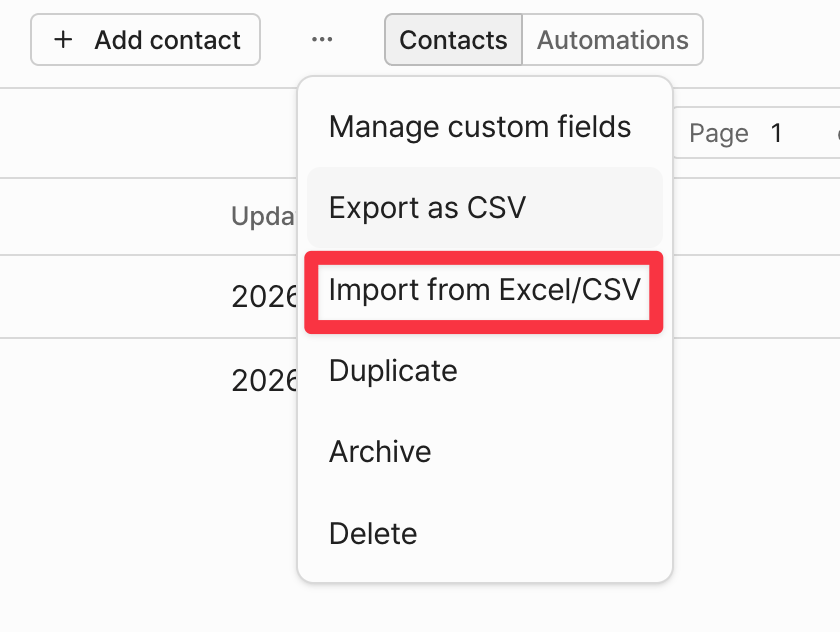
Where do contacts go when you import directly into a list?Contacts imported directly into a list are added to that list and, at the same time, to your workspace’s full contact list. In other words, you fill the list and your overall contact database at once.For detailed steps, see Import — Import directly into Lists.
Step 2. Set the list as recipients
On the campaign composition screen, select the list you created underRecipients → List. All leads in that list become the send targets. If you have no lists, you cannot send a campaign, so be sure to create a list first.
How you set recipients differs slightly by sending method.
- One-off Campaign: Select the list under
Recipients. - Triggered Campaign: Connect a
Source list. Sending starts the moment a lead is added to that list. - Sequence: Add individual contacts in the
Recipientstab.