

Overview
You can publish a sent campaign or triggered campaign as a web link and share it externally. Even people who didn’t actually receive the email can view the same content in their browser using just the link. Use it in many ways — Slack, messengers, Notion, documents, customer-facing materials, and more.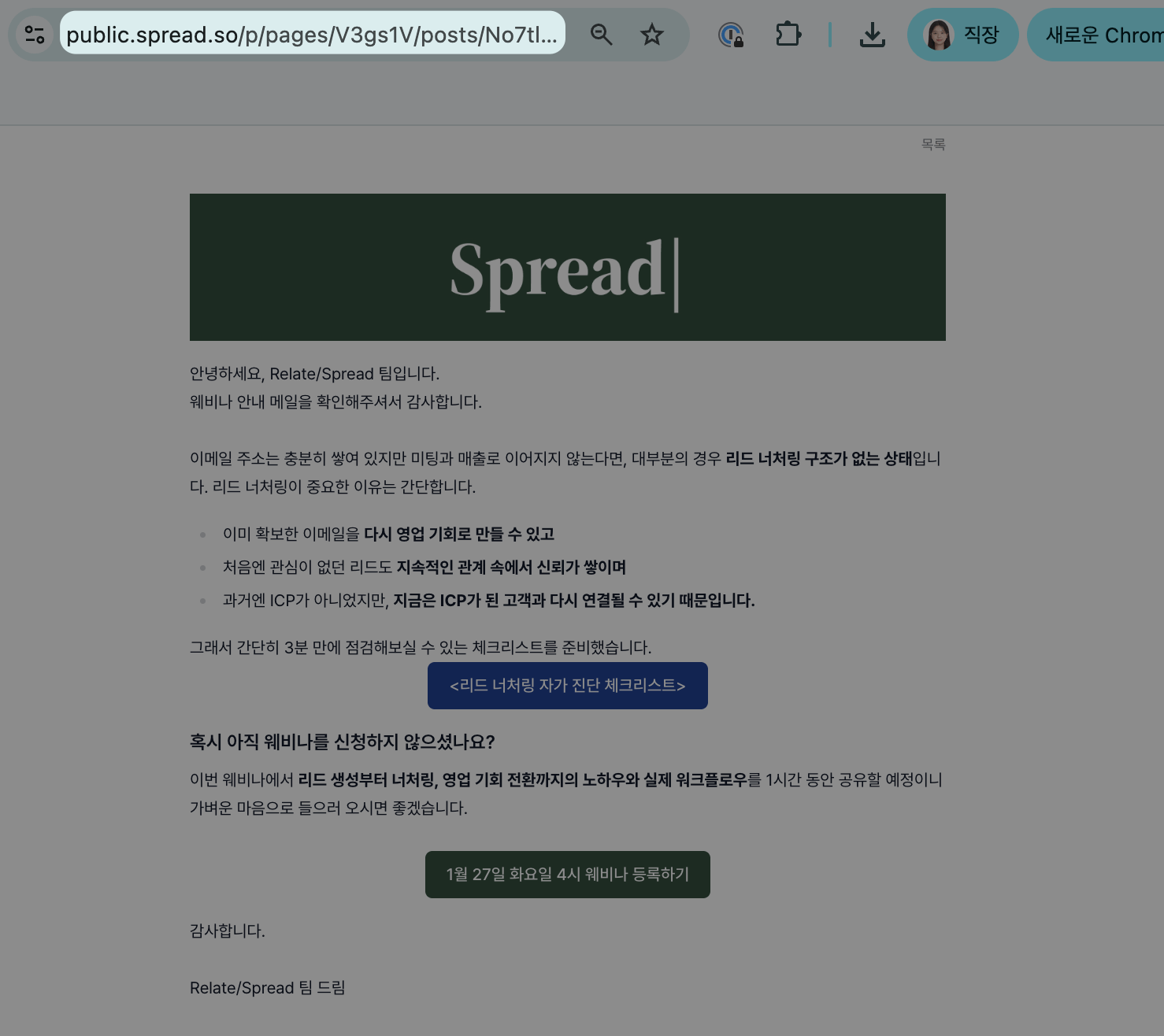
How to create a share link
(1) Creating a share link from a campaign
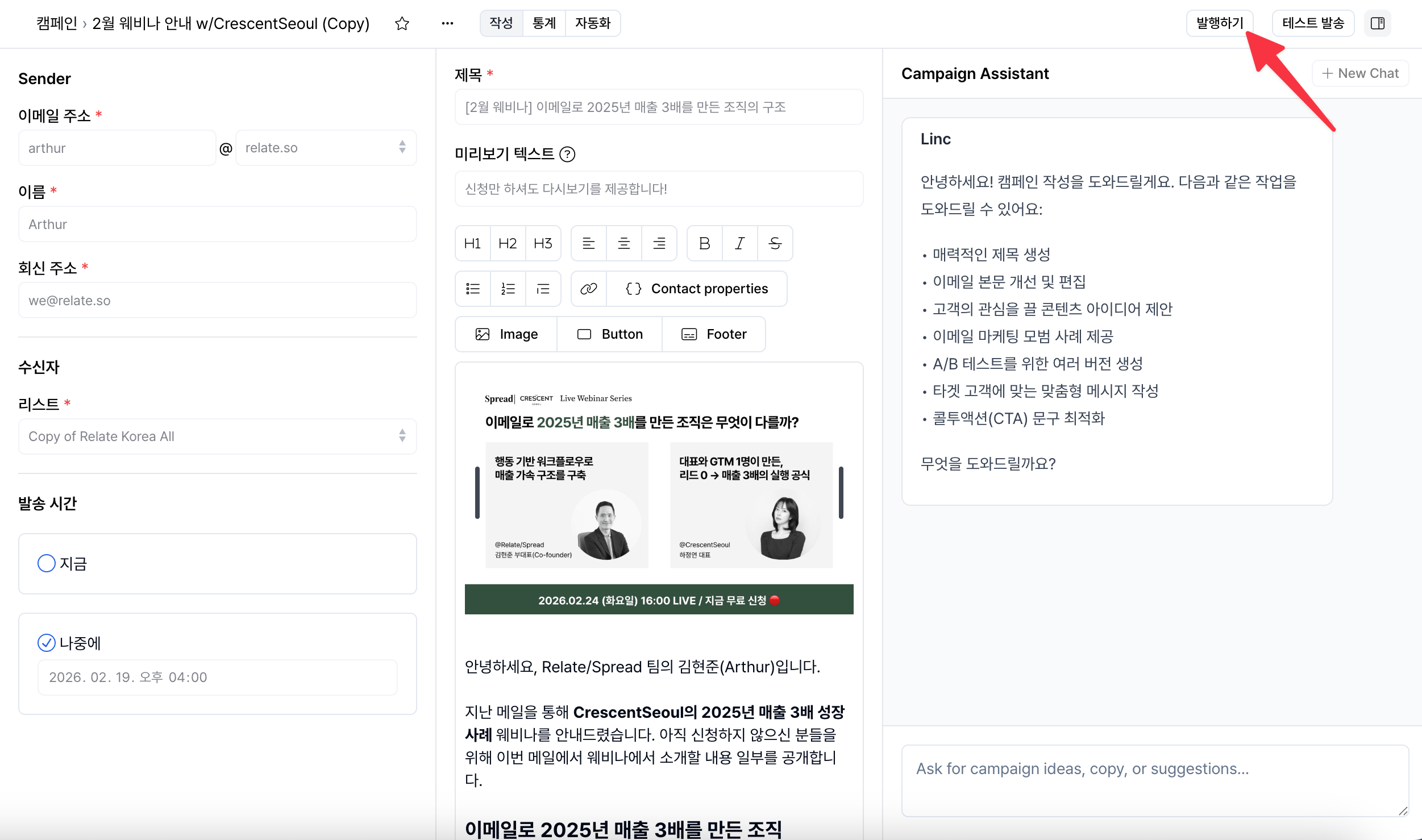
- Go to the detail page of a campaign that has finished sending.
- Click the
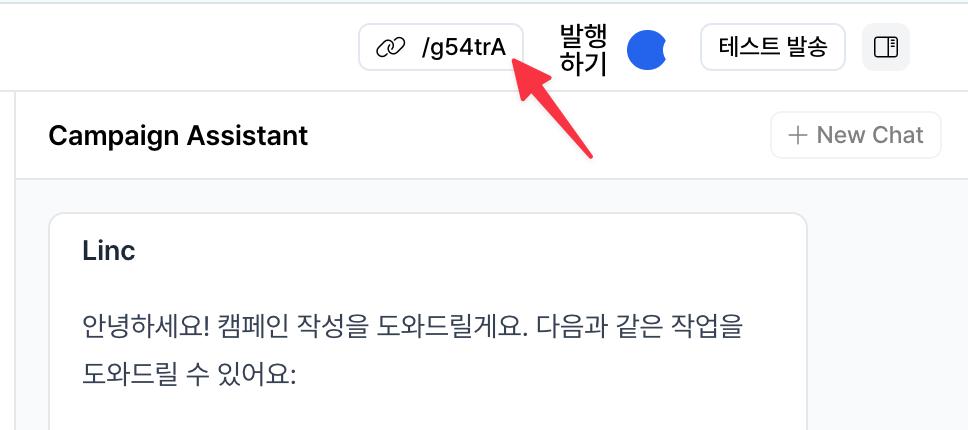
Publishbutton in the top-right corner. - Copy the newly created web link in the top-right corner and share it.
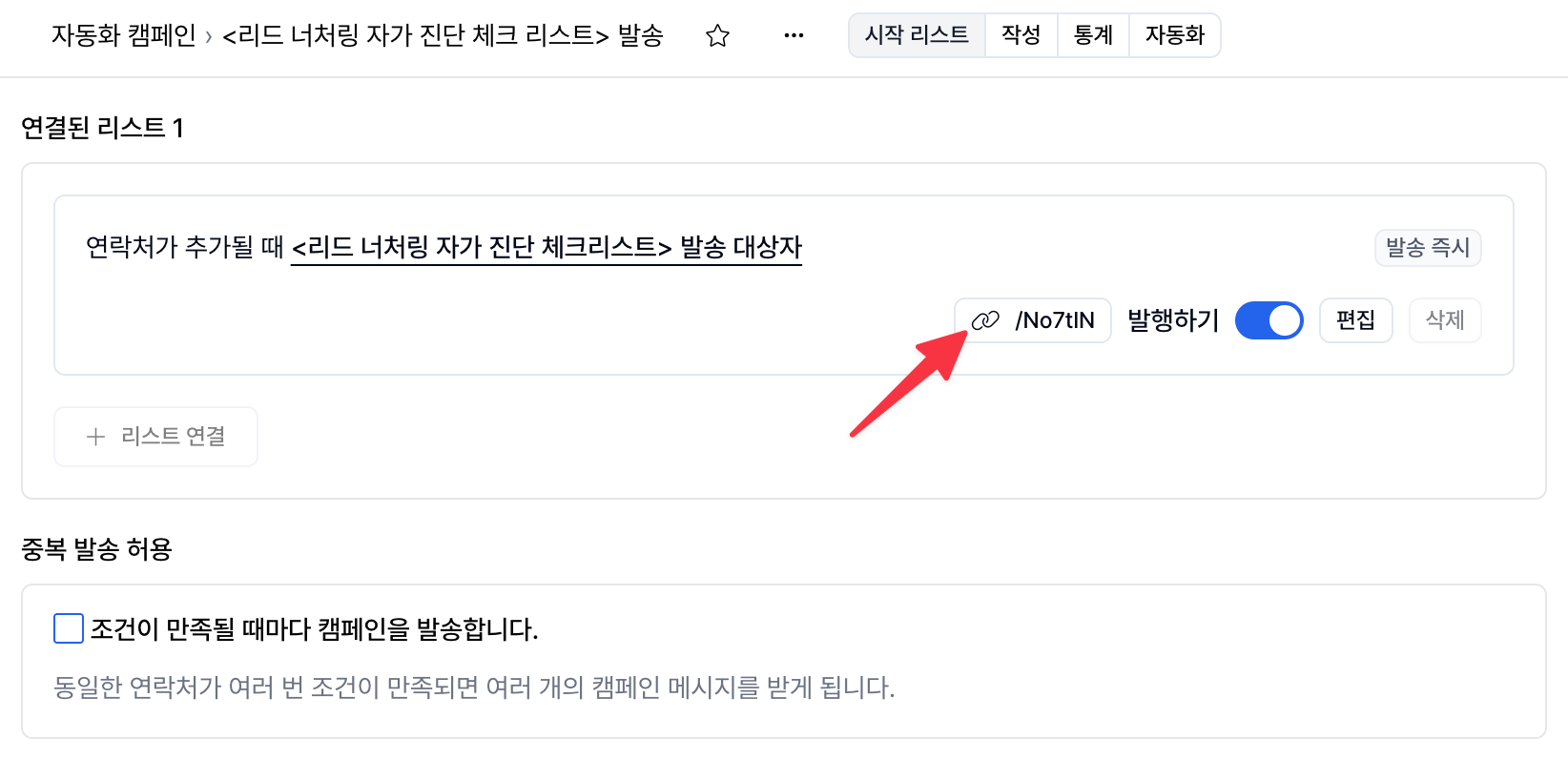
(2) Creating a share link from a triggered campaign
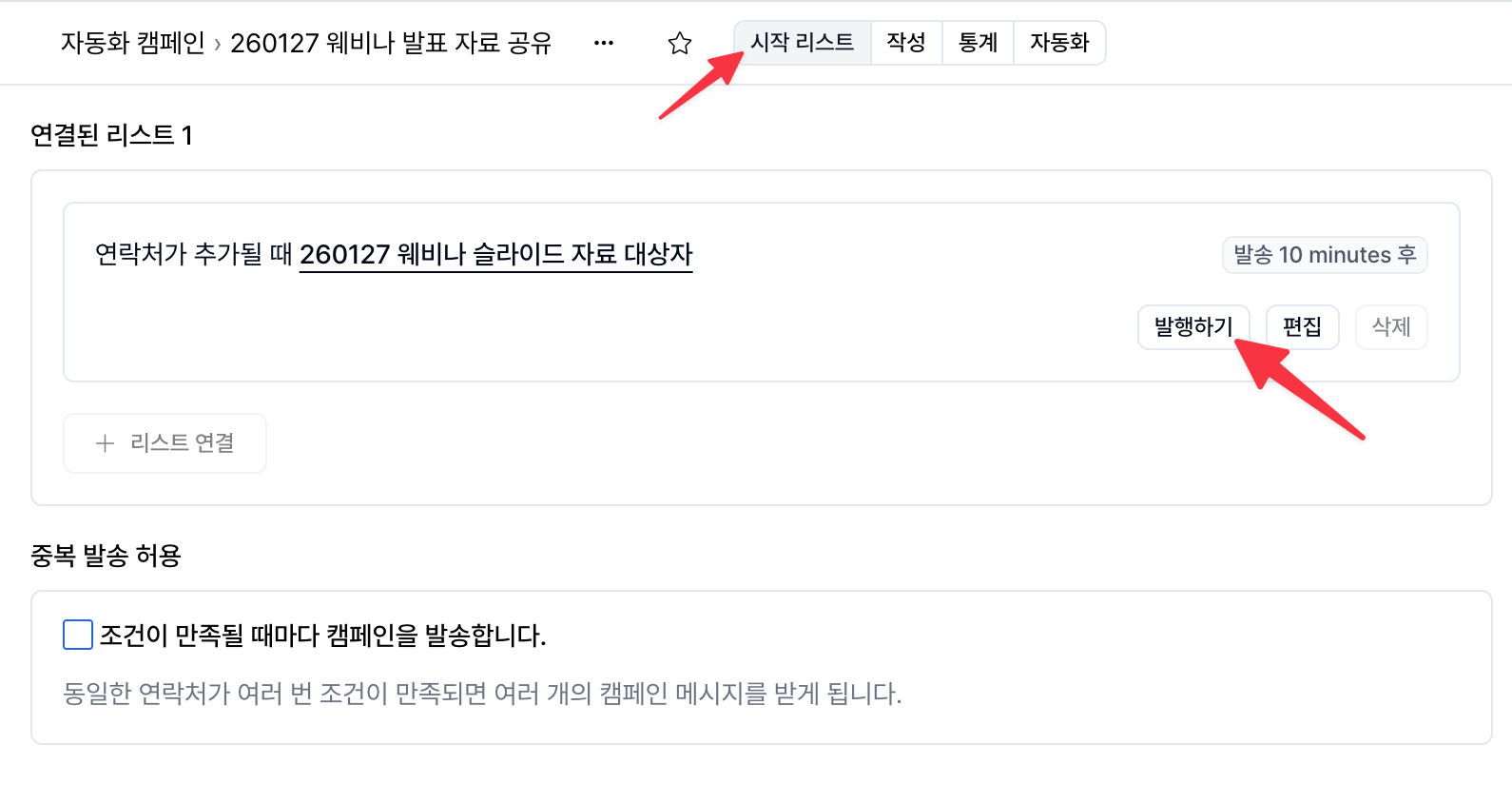
- Go to the detail page of a triggered campaign that has finished sending.
- In the
Source liststab at the top, click thePublishbutton. - Copy the web link created next to the
Publishbutton and share it.
Conditions for creating a share link
- A web link can only be created for campaigns / triggered campaigns that have finished sending.
- The
Publishbutton is not shown for drafts (in progress). In other words, you can only create a web link after sending. - If you want to share a draft, you can do so as follows:
- Copy the page URL from the browser’s address bar and share it directly.
- Only team members with access to that workspace can view it.
- Drafts cannot be shared with external users.