> ## Documentation Index
> Fetch the complete documentation index at: https://www.spread.so/docs/llms.txt
> Use this file to discover all available pages before exploring further.
# Pulse
> You can track every lead action, from email opens to meeting bookings.
## What is Pulse?
Pulse is a feature that **collects and connects all activities of leads and customers into a single timeline**.\
You can view actions that occur across various touchpoints (such as emails, documents, meetings, forms, and web pages) at a glance.
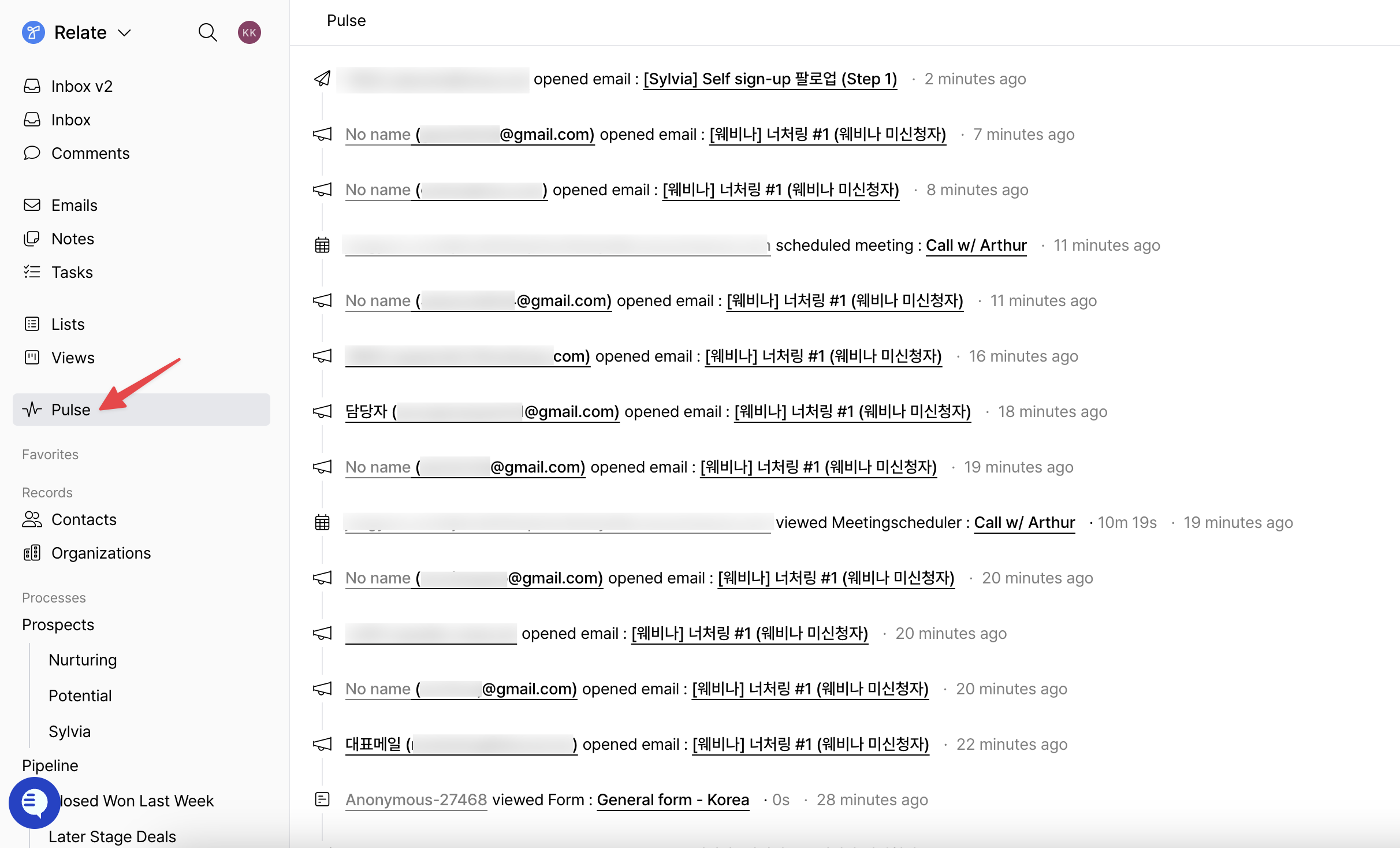 With this feature, you can easily check the following information.
* Who opened which emails and which links were clicked
* Which documents or forms were viewed and how long users stayed
* Whether the meeting scheduler was visited and whether it led to an actual booking
* Whether an anonymous visitor was later converted into an identified contact
This allows you to **capture lead interest signals without missing them and connect them to actions at the right time**.
***
## Sources of user activities collected by Pulse
Pulse collects user activities generated from the following sources.
### 1. Viewing [Documents](/docs/docs)
The following document related activities are tracked.
* Which documents were viewed
* How many pages (slides) were viewed
* Time spent on each document and page
* Clicks on links within the document
* Email submission after viewing a document
This makes it possible to understand not just whether a document was viewed, but how deeply it was read.
#### Anonymous document tracking
* Visitors who do not enter an email address are recorded as anonymous visitors.
* Document viewing activities that occur in the same environment are accumulated under a single anonymous visitor.
* When an identifiable action such as email submission or link click occurs later, the anonymous visitor’s activity history is automatically linked to the identified contact.
With this feature, you can easily check the following information.
* Who opened which emails and which links were clicked
* Which documents or forms were viewed and how long users stayed
* Whether the meeting scheduler was visited and whether it led to an actual booking
* Whether an anonymous visitor was later converted into an identified contact
This allows you to **capture lead interest signals without missing them and connect them to actions at the right time**.
***
## Sources of user activities collected by Pulse
Pulse collects user activities generated from the following sources.
### 1. Viewing [Documents](/docs/docs)
The following document related activities are tracked.
* Which documents were viewed
* How many pages (slides) were viewed
* Time spent on each document and page
* Clicks on links within the document
* Email submission after viewing a document
This makes it possible to understand not just whether a document was viewed, but how deeply it was read.
#### Anonymous document tracking
* Visitors who do not enter an email address are recorded as anonymous visitors.
* Document viewing activities that occur in the same environment are accumulated under a single anonymous visitor.
* When an identifiable action such as email submission or link click occurs later, the anonymous visitor’s activity history is automatically linked to the identified contact.
### 2. Email opens and link clicks from emails sent via Relate / Spread
#### 2.1 Campaigns, automated campaigns, and sequences
After emails are sent, the following email related activities are tracked based on recipient responses.
* `opened`: Email opened
* `clicked`: Link clicked within the email
* `bounced`: Email bounced
* `rejected`: Delivery rejected
* `unsubscribed`: Unsubscribed
Detailed explanations of event statuses can be found in the [Status](/docs/metrics#상태status-종류와-의미) guide.
Icons make it easy to distinguish which type of email the activity came from.
| Icon |
Type |

|
Campaign |

|
Automated campaign |

|
Sequence |
#### 2.2 1:1 emails sent within Relate
The following criteria apply for tracking responses to 1:1 emails.
* Standard 1:1 emails are tracked **only when there is a single recipient**, including to / cc / bcc.
* When using Gmail integration, individual tracking is available for each recipient.
### 3. Visiting the [Meeting Scheduler](/docs/meetings) page
The following activities on the meeting scheduler page are tracked.
* `viewed meeting scheduler`: Visited the meeting scheduler page
* Time spent on the meeting page
* `scheduled meeting`: Meeting successfully scheduled
This allows you to distinguish between simple visits and actual meeting conversions.
### 4. Visiting the [Forms](/docs/forms) page
The following activities are tracked during form page visits and submissions.
* `viewed form`: Visited the form page
* Time spent on the form page
* `submitted form`: Form successfully submitted
Form submission events can be used as a key point of lead conversion.
### 5. Website page visits
By installing a tracker code on your website or landing pages, page visit history can also be viewed in Pulse.
For example, you can track:
* Which pages were visited before submitting an inquiry form
* Which content was viewed immediately before conversion
This makes it possible to understand the full pre-conversion journey.
***
## Viewing Pulse by individual lead
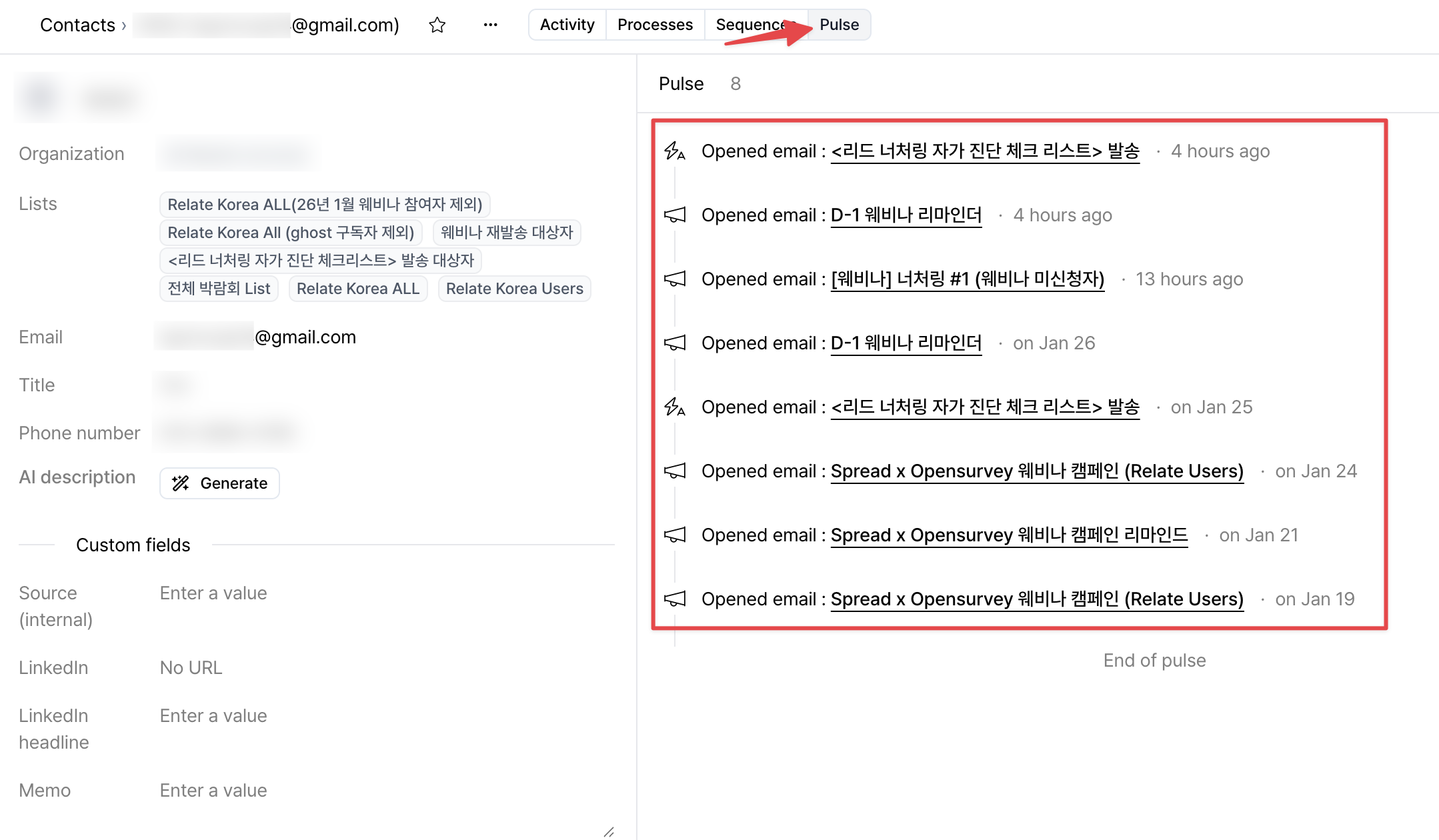 In addition to the overall timeline, Pulse allows you to **view all activities collected for each individual lead (contact)**.
When you click a specific lead on the Pulse page, you are taken to that lead’s contact page, where all related activities are displayed in chronological order in the `Pulse` tab.
On this screen, you can easily check the following.
* Which emails were opened, when, and how many times
* Which links were clicked
* Whether documents, forms, or meeting pages were visited
* Which activity occurred most recently
This allows you to quickly understand which content an individual lead is repeatedly engaging with and what stage they are currently in.
***
## What you can do with Pulse
Each user activity recorded in Pulse can be used as **a basis for automation and follow-up actions**.\
This makes it possible to quickly connect lead interest signals to actual conversions.
### Use cases
* Identify leads who viewed a specific document multiple times and connect them to follow-up campaigns or sequences
* Follow up with leads who opened emails but did not reply
* Identify high-conversion content by analyzing pages with long dwell time
* Track when anonymous visitors convert into identified contacts
Based on these activity signals, you can take the following actions.
* Trigger [Spread | Emma](/docs/emma-intro) automations based on specific activities
* Immediately add engaged leads to lists
* Quickly identify leads with high conversion potential
This allows you to capture moments of interest without delay and convert them into leads,
while continuously analyzing post-conversion behavior to improve high performing paths and content.
In addition to the overall timeline, Pulse allows you to **view all activities collected for each individual lead (contact)**.
When you click a specific lead on the Pulse page, you are taken to that lead’s contact page, where all related activities are displayed in chronological order in the `Pulse` tab.
On this screen, you can easily check the following.
* Which emails were opened, when, and how many times
* Which links were clicked
* Whether documents, forms, or meeting pages were visited
* Which activity occurred most recently
This allows you to quickly understand which content an individual lead is repeatedly engaging with and what stage they are currently in.
***
## What you can do with Pulse
Each user activity recorded in Pulse can be used as **a basis for automation and follow-up actions**.\
This makes it possible to quickly connect lead interest signals to actual conversions.
### Use cases
* Identify leads who viewed a specific document multiple times and connect them to follow-up campaigns or sequences
* Follow up with leads who opened emails but did not reply
* Identify high-conversion content by analyzing pages with long dwell time
* Track when anonymous visitors convert into identified contacts
Based on these activity signals, you can take the following actions.
* Trigger [Spread | Emma](/docs/emma-intro) automations based on specific activities
* Immediately add engaged leads to lists
* Quickly identify leads with high conversion potential
This allows you to capture moments of interest without delay and convert them into leads,
while continuously analyzing post-conversion behavior to improve high performing paths and content.